Help
Introduction
Section titled “Introduction”Check out video tutorials at YouTube and read the explanations below.
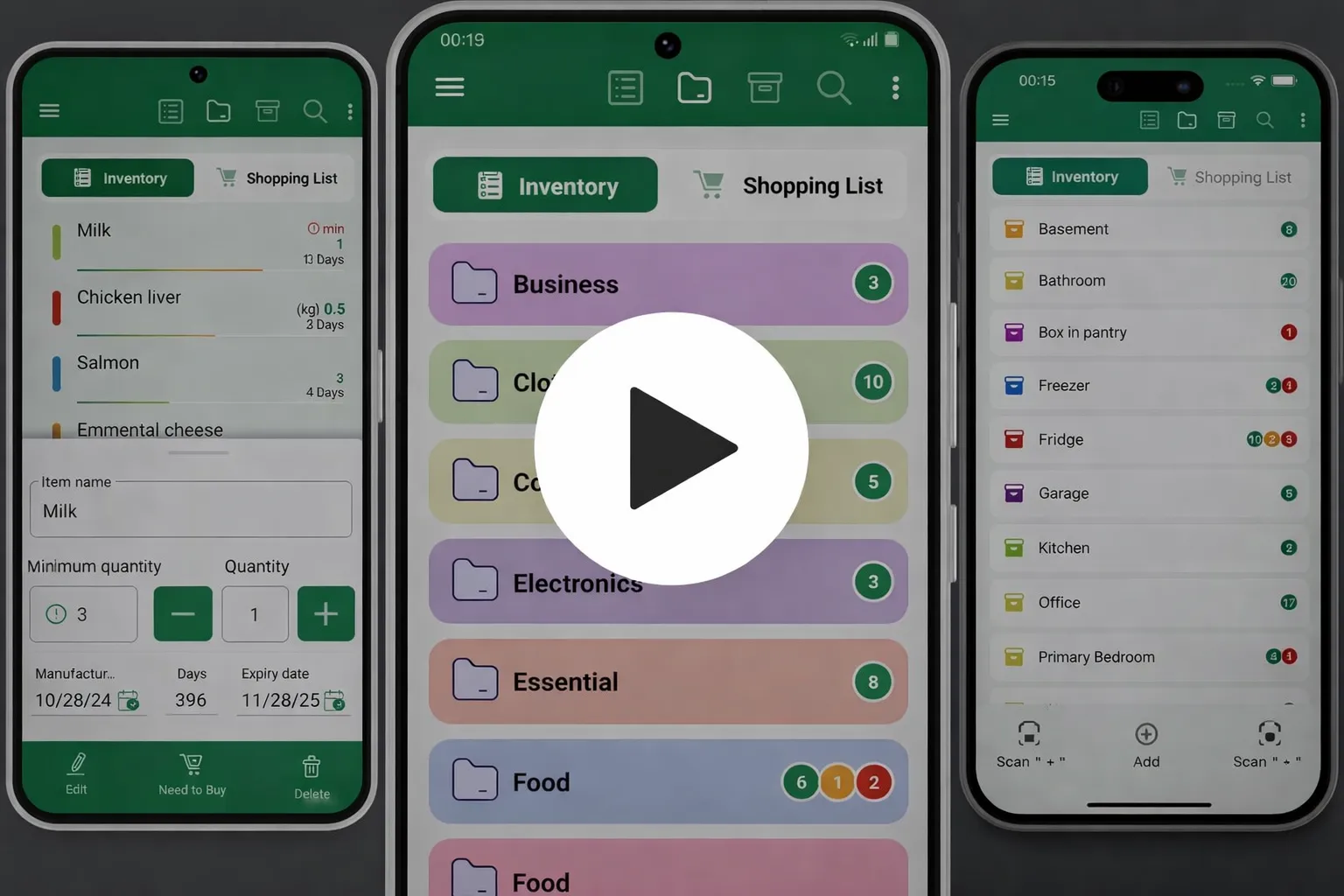
This application allows you to organize and keep in order all your things at home, including food, clothes, homeware, tools, hobby collections and anything else.
Where it is applicable you can set minimum quantity values to get alerts when your stock is low and you need to replenish it.
You can also track your food supplies, keep an eye on expiration dates of products, and use shopping list to replenish your stock.
There are 2 lists on 2 tabs: “My Inventory” and “Shopping List”.
My Inventory
Section titled “My Inventory”
- You can add there everything that you have at home. For each entry you can assign category and storage place
- Examples of storage places are fridge, freezer, pantry, cupboard, shelves, various boxes, actually any place at your home
- If this is food, cosmetics or medicines you can set an expiration date for such items if needed
- You can see expiration date of each product in the list as well as a visual indication of products which expire soon or already expired
- You will get notifications when products are near to expiration date or already expired. The number of days before expiry when you start to get notifications can be set in Settings
- If you set minimum quantity value then you will get alert when quantity drops below the minimum. There is also an ability to create Shopping List based on low stock levels
- You can tap on any item from “My Inventory” list, copy it to “Shopping List” and set the quantity needed to purchase
Shopping List
Section titled “Shopping List”
- You can add there items directly or copy them from “My Inventory”
- For each item you can assign store where you prefer to purchase this item and view Shopping List grouped by stores
- After you have purchased an item you can move it from “Shopping List” to “My Inventory” list
- When you move an item from “Shopping List” to “My Inventory” the quantity is deducted from “Shopping List” and added to “My Inventory”
Barcodes
Section titled “Barcodes”
- You can use your phone’s camera to scan barcodes of products
- Once barcode is added to a product you can just scan this barcode to perform an action instead of manual input
- You can associate more than one barcode to a single product. For example, you buy pasta from different manufacturers with different barcodes but wish to see just “Pasta” in your lists
- Use Manage → Catalog menu item to edit items and add extra barcodes
Sharing and Syncing
Section titled “Sharing and Syncing”
- Share your lists with your family or use them on multiple devices
- Go to Users menu item and add your family member’s e-mail
- When this person installs the application and performs login with his e-mail he will be able to access your lists
- If you log in with your account on another device all data syncs automatically almost in real-time
We use Open Food Facts database https://world.openfoodfacts.org/ to fetch products’ names and photos by barcode. This option’s availability depends on the country.
Don’t hesitate to contact us if you have any questions.
Contact e-mail: chester.help.si+homelist@gmail.com